In this writing app, you can focus on typing without distractions and save your work as a PDF. Includes features like fixed cursor positioning and an extension keybar for ease of typing.
AppRecs review analysis
AppRecs rating 3.4. Trustworthiness 78 out of 100. Review manipulation risk 21 out of 100. Based on a review sample analyzed.
★★★☆☆
3.4
AppRecs Rating
Ratings breakdown
5 star
43%
4 star
29%
3 star
0%
2 star
7%
1 star
21%
What to know
✓
Low review manipulation risk
21% review manipulation risk
✓
Credible reviews
78% trustworthiness score from analyzed reviews
✓
Good user ratings
71% positive sampled reviews
About Write Only
Write Only allows you to use your iPad/iPhone in the exact same way as a good old typewriter. It is a special app designed for people who just want to focus on writing. By separating writing from editing, it helps you focus more on getting your ideas out. Using it is like sitting in front of a typewriter and letting words flow out of your finger tips.
Everything you put down on the page is permanent. All the typing is saved as a PDF file, including the positions, the font size, and the colors that the texts come out with. No matter where and when you are going to view these pages, they will be kept exactly same as the time you typed them.
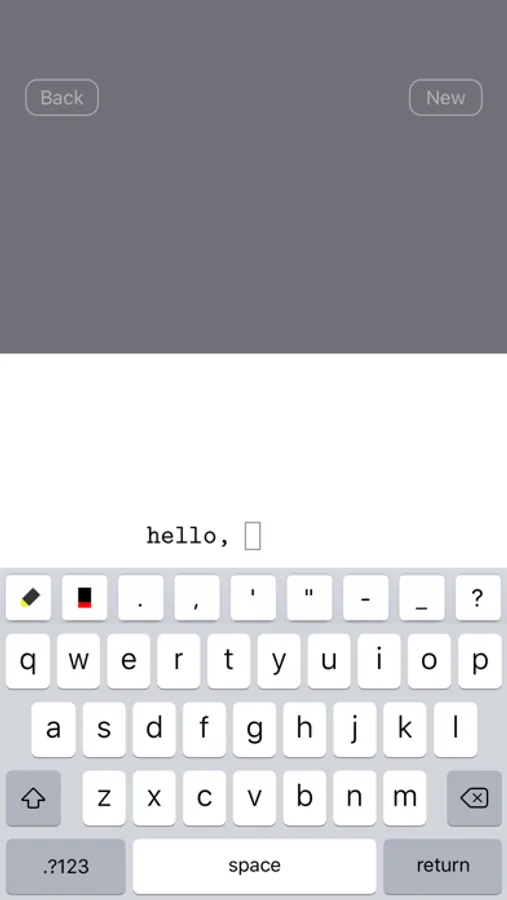
Fixed cursor sits right above the keyboard, therefore your eyes will be close both to the text you're typing and the fingers, and that can help to reduce typing errors.
You can start typing on the page at any place by tapping on that location and use any margin you want by moving the page. It is very easy to type aligned texts.
An extension keybar includes frequently used keys like ' or ; that are difficult to access in iOS' default keyboard.
Write Only is good for writing the first version of any work, especially diary or journal. When you come back to your writings years later, the shapes of the text and the errors you made will help you remember the moments of the writing.
Tips:
- To delete a page, slider your finger from right to left over the page you want to remove;
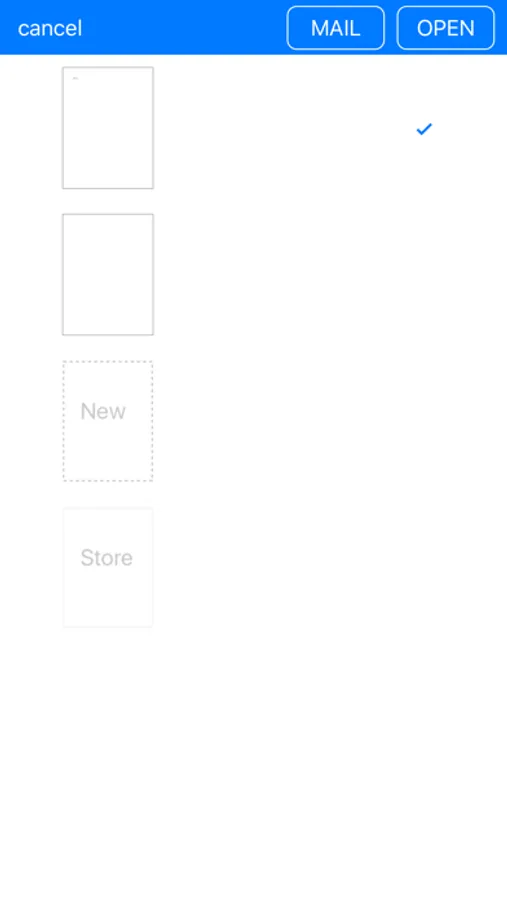
- To send one or more pages, long press on the page you want to send, after the toolbar shows up, you can select more than one pages. More pages means more time to prepare. Sending multiple pages will combine pages into one single PDF document first.
- To select a different font, go to Settings app → Write Only, choose your favorite font, then return back to Write Only, start a new page or simply restart.
Everything you put down on the page is permanent. All the typing is saved as a PDF file, including the positions, the font size, and the colors that the texts come out with. No matter where and when you are going to view these pages, they will be kept exactly same as the time you typed them.
Fixed cursor sits right above the keyboard, therefore your eyes will be close both to the text you're typing and the fingers, and that can help to reduce typing errors.
You can start typing on the page at any place by tapping on that location and use any margin you want by moving the page. It is very easy to type aligned texts.
An extension keybar includes frequently used keys like ' or ; that are difficult to access in iOS' default keyboard.
Write Only is good for writing the first version of any work, especially diary or journal. When you come back to your writings years later, the shapes of the text and the errors you made will help you remember the moments of the writing.
Tips:
- To delete a page, slider your finger from right to left over the page you want to remove;
- To send one or more pages, long press on the page you want to send, after the toolbar shows up, you can select more than one pages. More pages means more time to prepare. Sending multiple pages will combine pages into one single PDF document first.
- To select a different font, go to Settings app → Write Only, choose your favorite font, then return back to Write Only, start a new page or simply restart.
Write Only Screenshots
Tap to Rate:
Reviews for Write Only
dinofan10000
Can’t delete pages or erase
Could you please make a free typing game?
Panopticon_Artist
Why Can’t I save the document?
Look cool for typing but I can’t find anyway to save or export the thing I’ve type and nothing appears to be saving.