In this app, you can monitor and log WiFi network parameters with map visualization and auto-connect features. Includes network measurement tools, map display, and logging options.
AppRecs review analysis
AppRecs rating 4.5. Trustworthiness 53 out of 100. Review manipulation risk 48 out of 100. Based on a review sample analyzed.
★★★★☆
4.5
AppRecs Rating
Ratings breakdown
5 star
78%
4 star
13%
3 star
4%
2 star
0%
1 star
4%
What to know
✓
Authentic reviews
Natural distribution, no red flags
⚠
Questionable review patterns
48% review manipulation risk - some review patterns appear unusual
⚠
Rating authenticity concerns
High rating concentration (78% 5-star) in sampled ratings
About G-NetWiFi
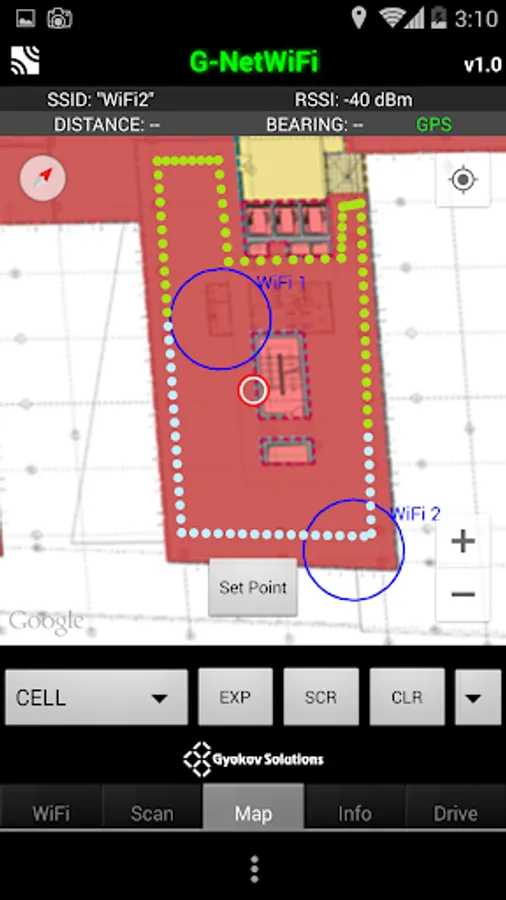
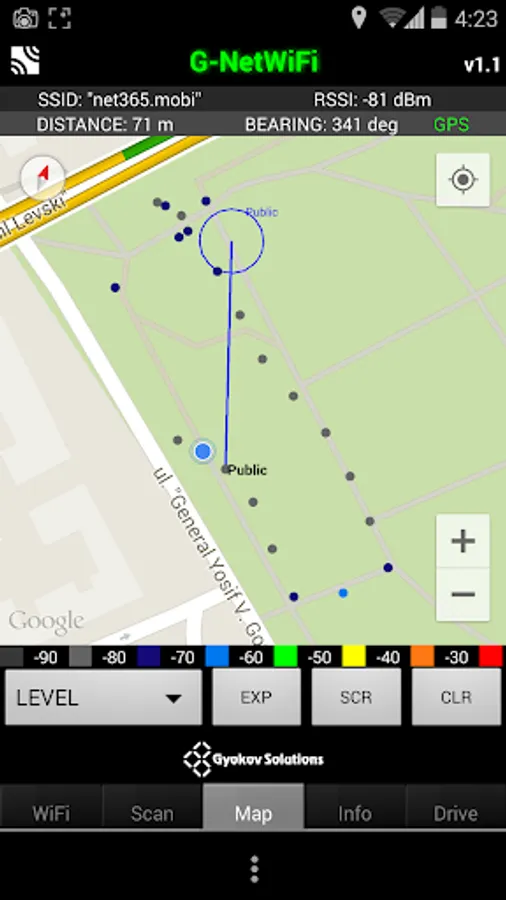
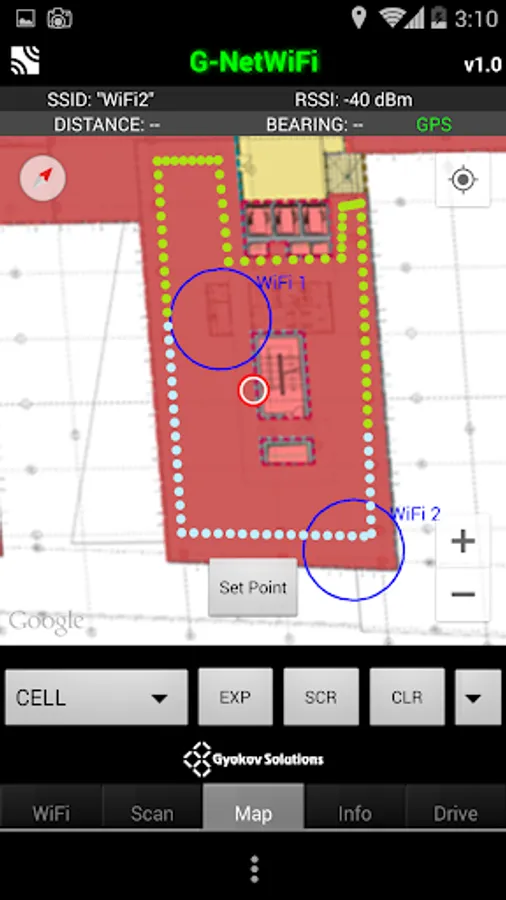
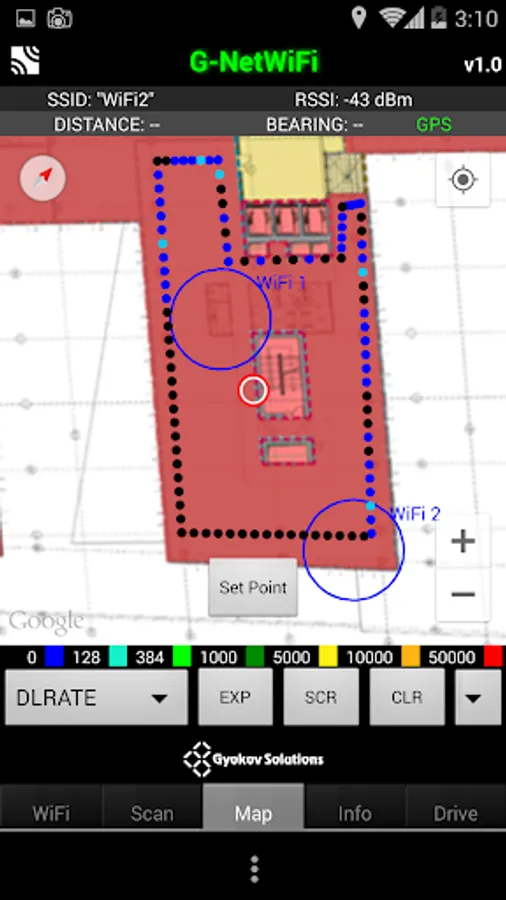
G-NetWifi can be used in outdoor and in indoor environment with loading of floorplans.
The main features of G-NetWiFi are:
- measuring of WiFi network parameters
- logging of measured values in text and kml files
- displaying measured values on map view
- auto connect to best configured WiFi - in Settings - Other
The app uses runtime permissions. Grant needed permissions in Menu - App permissions in order to use all app features.
Get G-NetWiFi Pro version:
Google Play: http://play.google.com/store/apps/details?id=com.gyokovsolutions.gnetwifipro
G-NetWiFi Pro - additional features:
- WiFi scan logging
- Data test (ping, upload, download)
- Data sequence
- loading of cellfile and displaying WiFi access points and serving cell line on map
- Scan only configured WiFi
- Change WiFi AP color
- Extended kml export
- Predefined routes load
- Auto add new WiFi AP to cellfile
- Import/export app settings
- Extended text logging
- Change app folder
- Log reduction factor
2. Tabs
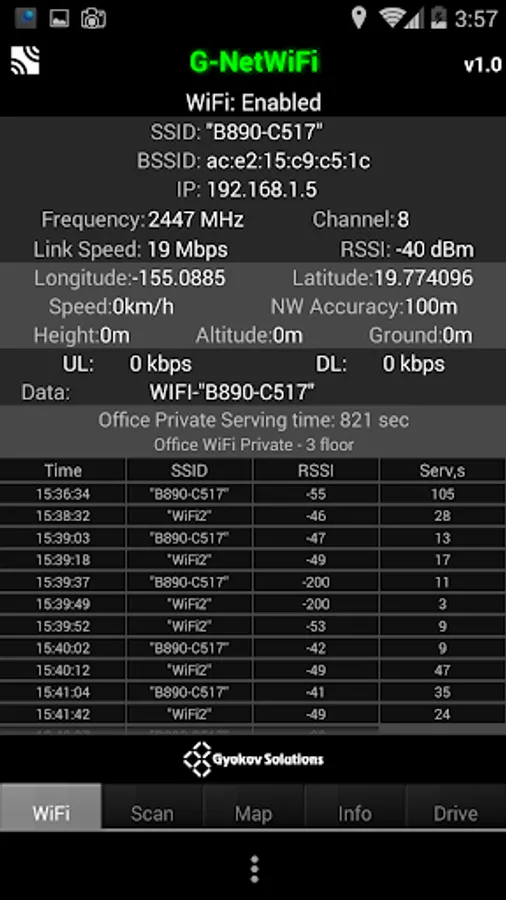
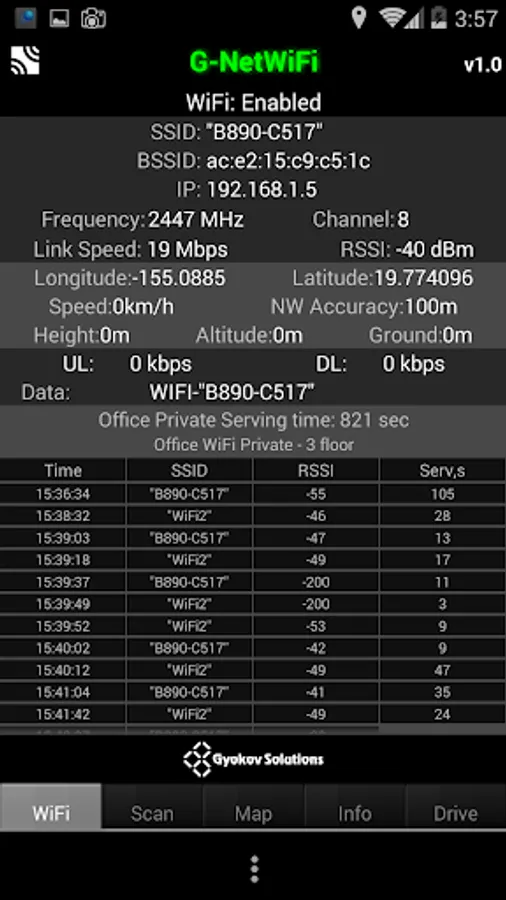
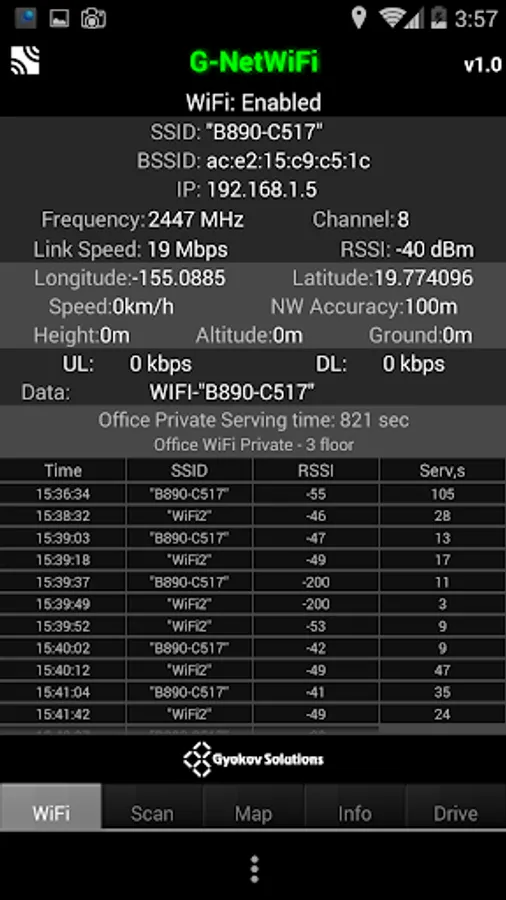
2.1. WIFI Tab
WIFI tab shows network and geographical information.
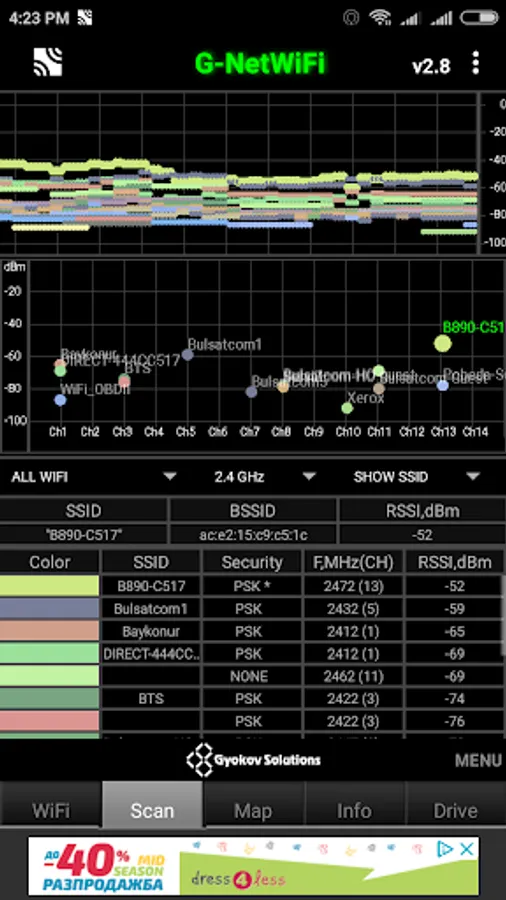
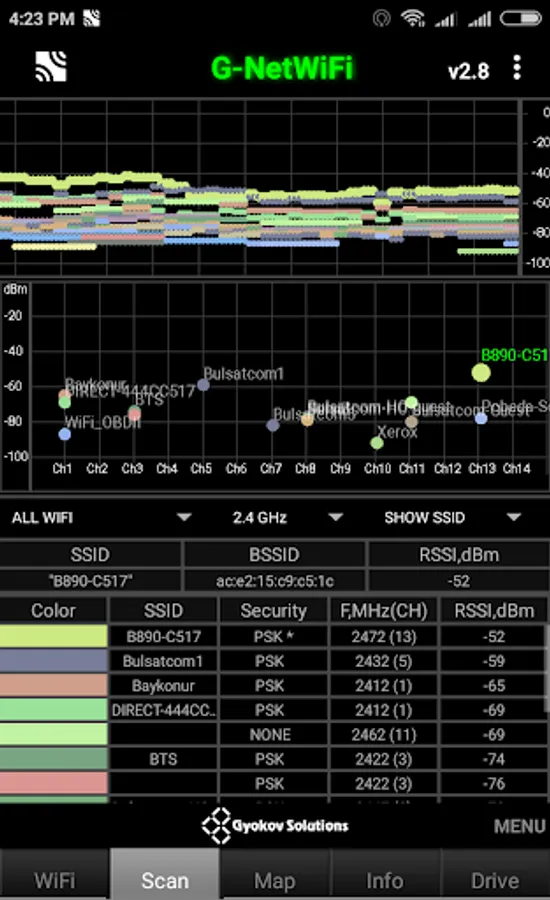
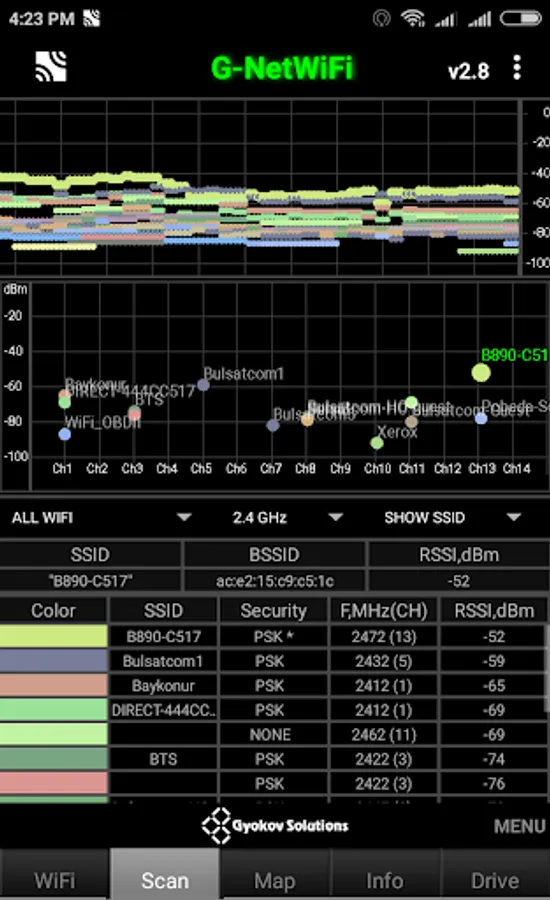
2.2 SCAN Tab
SCAN tab shows information about neighbor WIFI AP measurements.
You can change the chart to show all WiFi or only configured WiFi via the button under the chart.
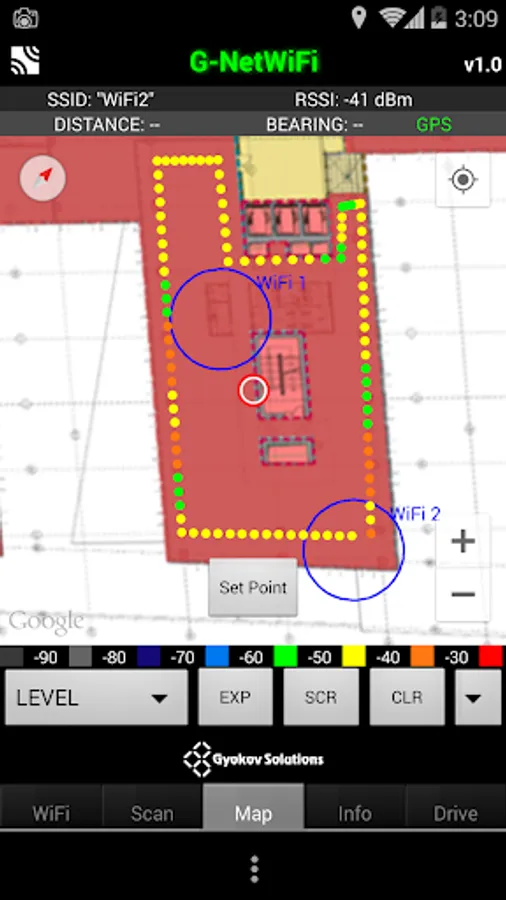
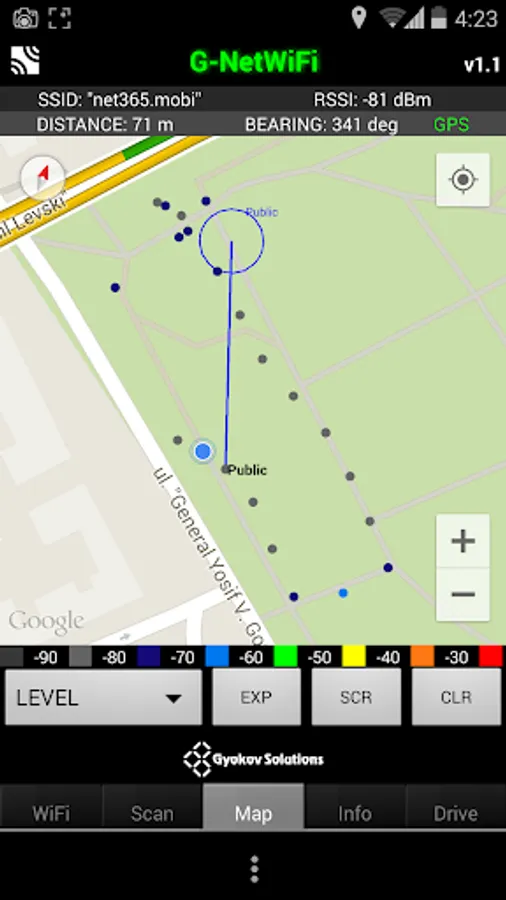
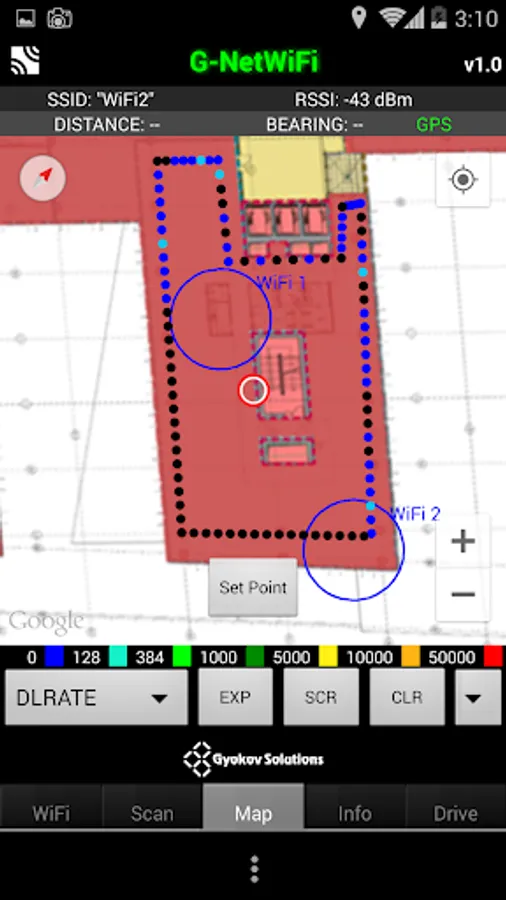
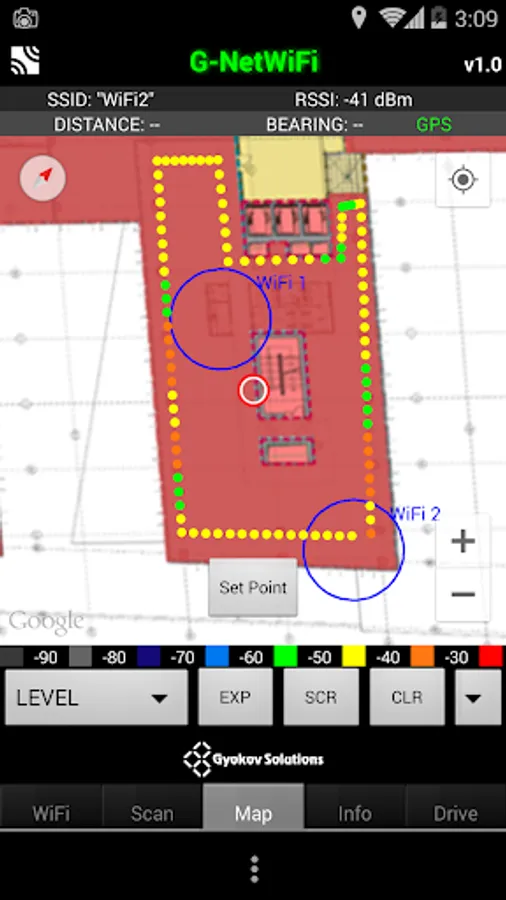
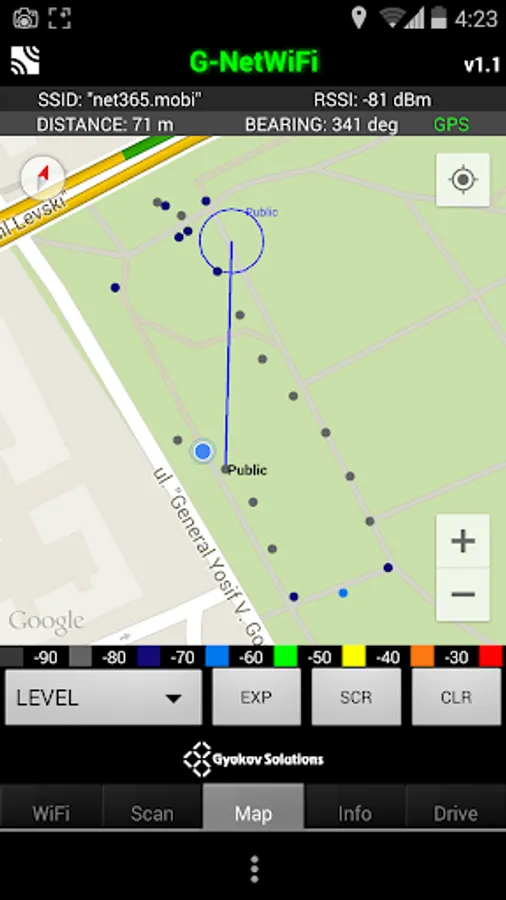
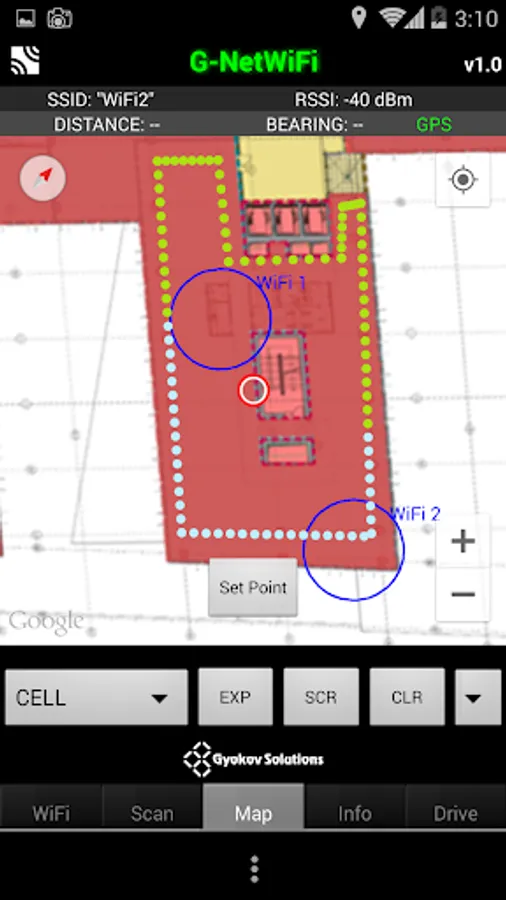
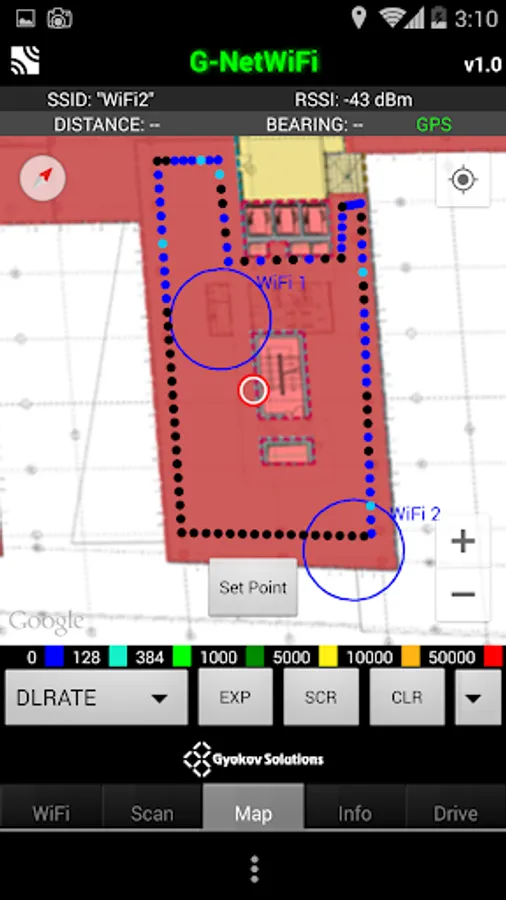
2.3 MAP tab
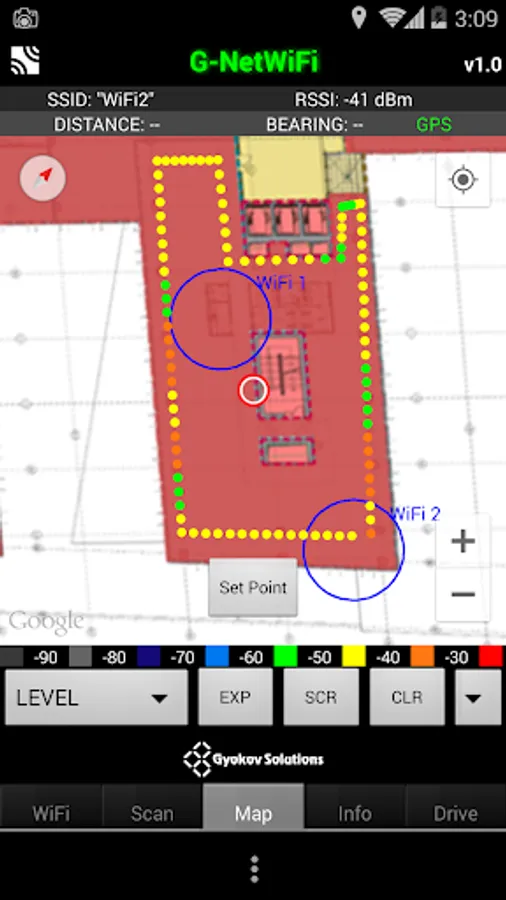
MAP tab shows geographical view of the measurements and WiFi access points
2.4 INFO tab
The INFO tab provides miscellaneous information.
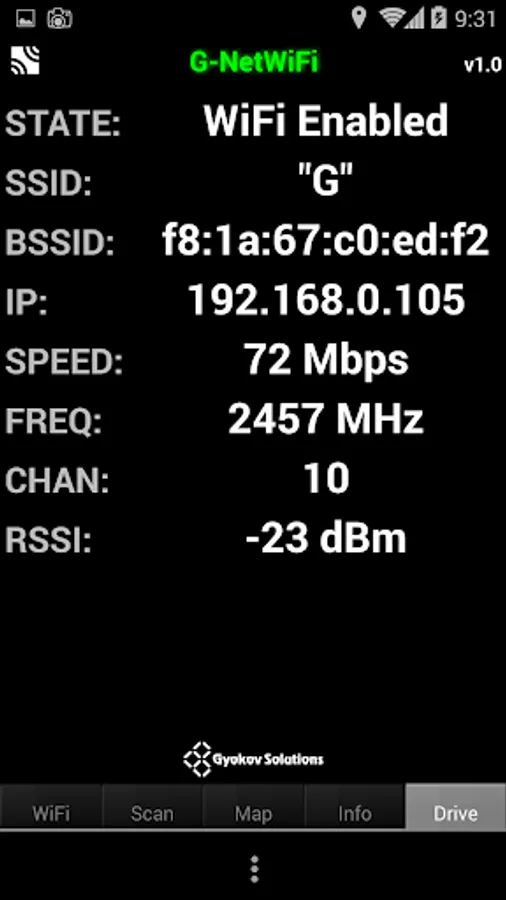
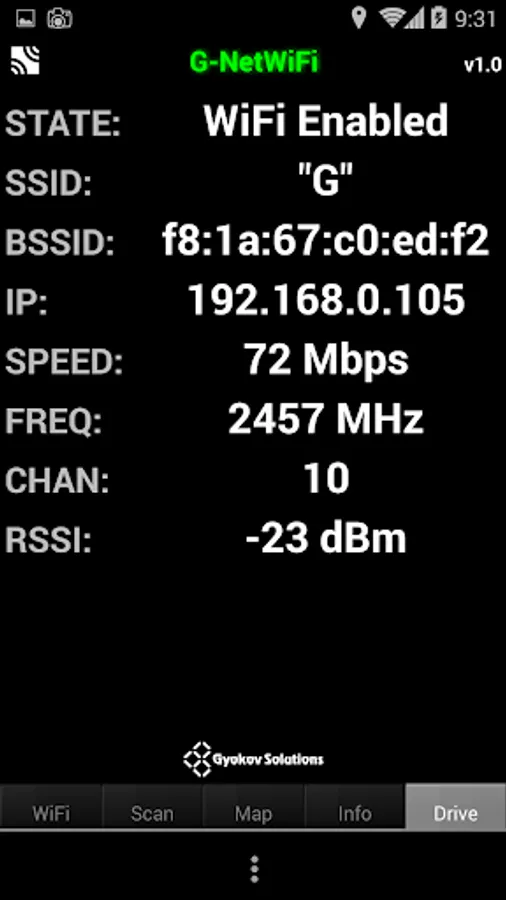
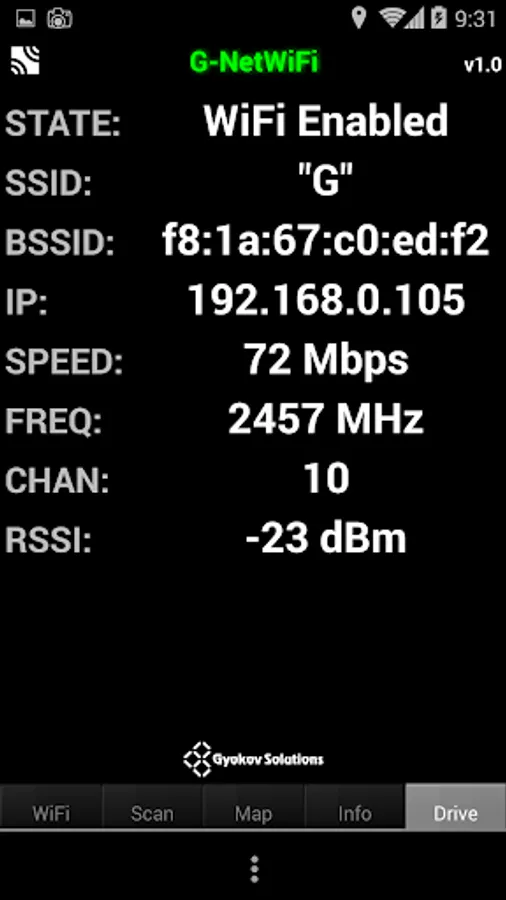
2.5 DRIVE tab
DRIVE tab represent the main serving AP information
Cellfile
Create cellfile and put it into folder G_NetWiFi_Logs/cellfile.
Here is a sample cellfile: http://www.gyokovsolutions.com/downloads/G-NetWiFi/cellfile.txt
INDOOR MODE
How to use indoor mode:
1. Go to Settings and activate INDOOR MODE
2. On Map the button [Set Point] and center point will appear
3. Point your current location on the map center and press [Set Point] - a marker will appear on the map
4. Move to the next point. Center map on it and press [Set Point] - several new markers (one for each second) will appear connecting previous and current location
5. Go through the route putting points when you change direction.
6. You can clear the markers using [CLR] button
AUTO INDOOR mode allows auto filling of measurement points when the GPS fix is not available like in tunnels or on places with bad GPS reception.
AUTO INDOOR mode works only when the log is active.
If INDOOR mode is selected AUTO INDOOR mode is not activated.
How to use it:
1. Enable AUTO INDOOR mode in Settings.
2. Choose threshold for GPS validity
3. Start log.
4. When you enter the tunnel and lose GPS fix the GPS writing on upper right corner of MAP tab will color in blue which means that AUTO INDOOR mode is active and measurements are collected.
5. When you go out of the tunnel and GPS fix is valid the values for GPS accuracy and time are colored in green, the exiting point is auto set and the missing measurements between entering and exiting point are shown on the map and filled in the log.
Floorplans
How to load floorplans:
1. In folder G_NetWiFi_Logs/floorplan put the floorplan images and create text index file (index.txt) with rows for each image and following content (tab delimited)
imagename longitudeSW latitudeSW longitudeNE latitudeNE
where SW and NE are South - West corner and North - East corner.
2. Go to Menu - Load Floorplan. The floorplans will be shown on map and you can change the floor with the help of the Floor button - next to CLR button
Here you can download floorplan sample: http://www.gyokovsolutions.com/downloads/G-NetTrack/floorplan.rar
App privacy policy - https://sites.google.com/view/gyokovsolutions/g-netwifi-privacy-policy
G-NetWiFi Screenshots
Tap to Rate:
Reviews for G-NetWiFi
Espen Laub
8/27/2023
👍
tjh android
2/19/2023
Unable to use this app on Friday and today. Can help to check? Location enabled. Checked App Permission. Uninstalled and reinstalled a few times. Android 10 in Oppo R17. Another Android phone Huawei also unable to use. Cannot launch app at all. When I tried to launch a few times, a pop up message "G-NetWiFi failed to start several times. Restore it by clearing history?" I pressed "Clear immediately". After that, still unable to launch the app. Wow! Fast response. Yes it is working now. Thanks.