AppRecs review analysis
AppRecs rating 3.5. Trustworthiness 80 out of 100. Review manipulation risk 21 out of 100. Based on a review sample analyzed.
★★★☆☆
3.5
AppRecs Rating
Ratings breakdown
5 star
50%
4 star
10%
3 star
10%
2 star
20%
1 star
10%
What to know
✓
Low review manipulation risk
21% review manipulation risk
✓
Credible reviews
80% trustworthiness score from analyzed reviews
✓
Good user ratings
60% positive sampled reviews
About Remote Ripple
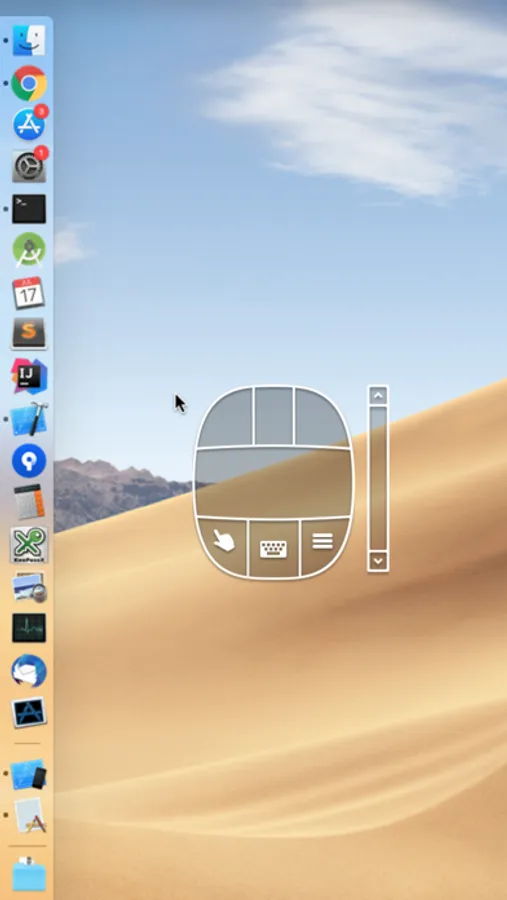
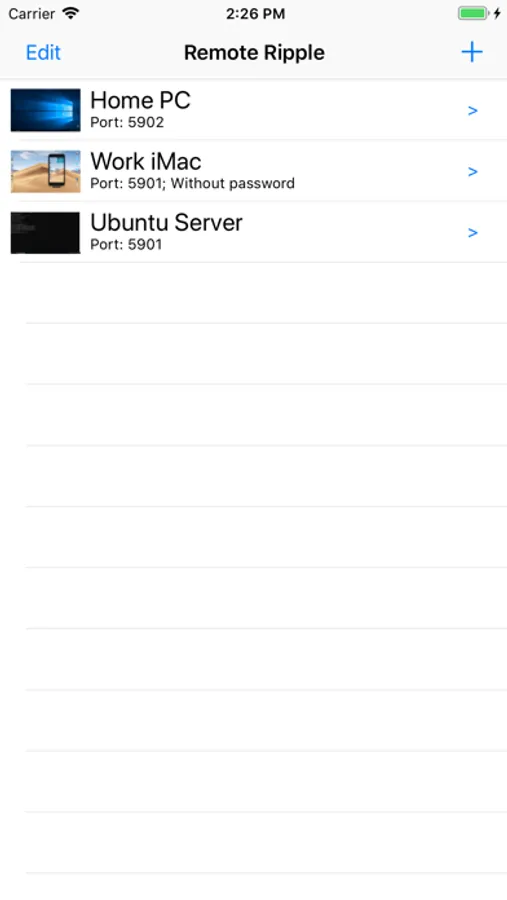
- Clean and simple user interface
- Fast operation even on slow connections
- Smooth desktop scaling
- Low memory footprint
It works via Wi-Fi, 3G, 4G/LTE networks and connects straightly to your remote machines. It does not use intermediate servers and does not route your data to third-party services. While direct connections via Internet may require some configuration, they guarantee best performance and independence from online services.
HOW IT CAN HELP YOU
From time to time, many of us need to access our “big computers” and use some “big software” installed on it. Remote Ripple allows you to do your work remotely. Also, you can:
- Monitor what's happening on your computers while you're away (use View-only mode to prevent from interfering with the desktop).
- Provide remote support to your friends and family. Assist in installing software, fix problems and demonstrate how to set up things.
- Administer servers, workstations and virtual machines remotely.
- Control your home computers while laying in a lounge chair. For example, you can use Remote Ripple as a remote control for your music or video player running on a PC.
- Copy a file forgotten on a remote host (while Remote Ripple does not support direct file transfers, it can help in transferring files with other services like Dropbox or Google Drive).
Install Remote Ripple, and find your own use cases!
GETTING STARTED
To connect with Remote Ripple, make sure your target computer runs a sort of VNC server.
- If the target PC runs Windows, install a VNC server on it. We strongly recommend TightVNC as it provides best performance and compatibility with Remote Ripple. You can download your free copy of TightVNC on its Web site — http://www.tightvnc.com/
- Mac OS X systems already have a VNC server included. It's a part of Apple Remote Desktop service. To enable it, go to System Preferences, choose Sharing, enable Remote Management, press Computer Settings, check “VNC viewers may control screen with password” and enter the password you will use when connecting.
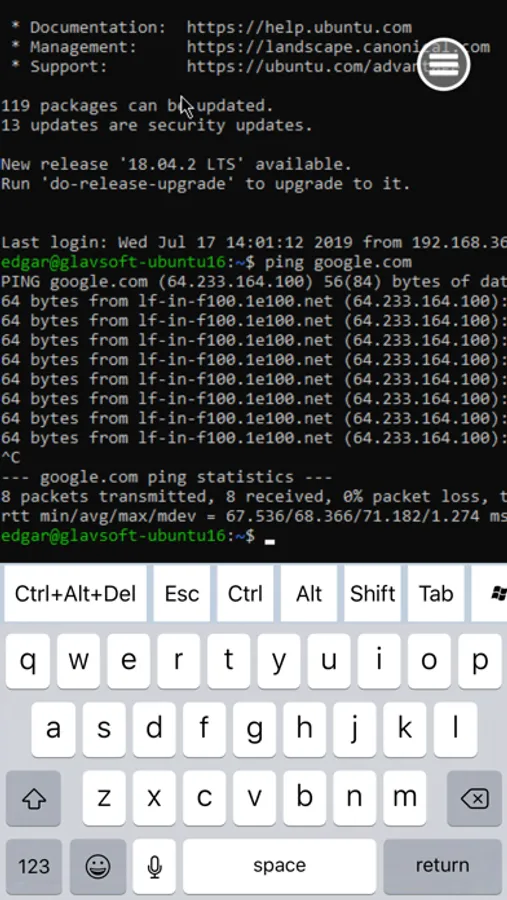
- Most Linux distributions include a number of VNC servers as well. Just install a VNC server from your package collection, and type something like vncserver or tightvncserver (or whatever command starts that particular VNC server). Typically, it will offer you to enter new VNC password and will start sharing your desktop (or create new virtual desktop for you).
- Virtualization systems (such as VMware and QEMU) often include built-in VNC servers, although they may not be enabled by default.
GET NEWS AND SUPPORT
- App page at Facebook: https://www.facebook.com/RemoteRipple (press Like to see updates in your news feed)
- Remote Ripple on Twitter: https://twitter.com/RemoteRipple (press Follow to get updates)
LIKE REMOTE RIPPLE? RATE AND REVIEW IT ON THE APP STORE!
Also, we will appreciate if you review Remote Ripple in your blog, social networks, other Web sites or forums. Send us links to your reviews!
Thank you!
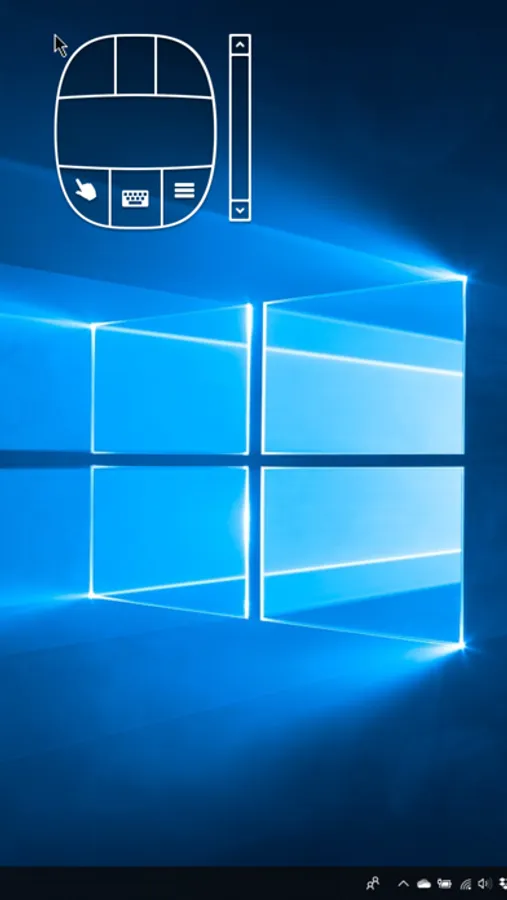
Remote Ripple Screenshots
Tap to Rate:
Reviews for Remote Ripple
hfmej
Works very well!
Has all the expected features for remotely controlling your computer, when used with Tight VNC it has worked flawlessly so far The controls are cumbersome but that’s really no fault of the app itself.
Heck of a Writer
Works, but it’s clunky with a physical keyboard/mouse
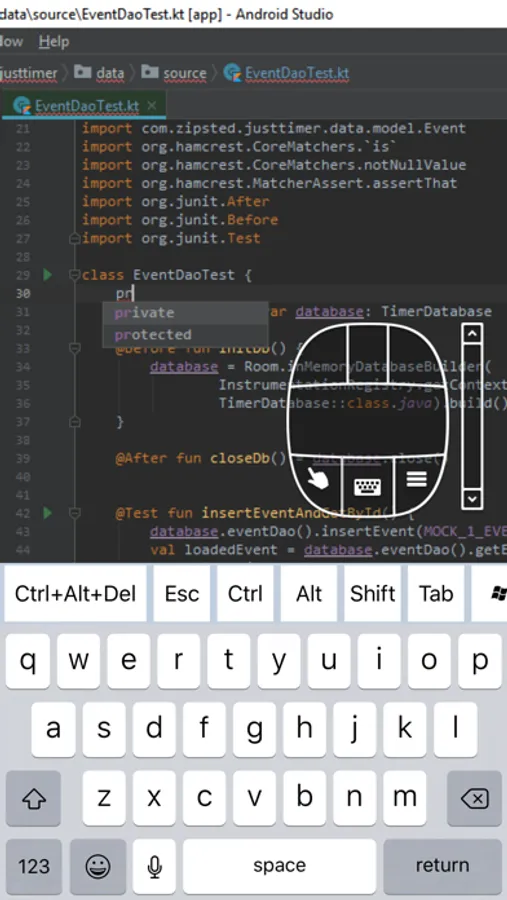
The connection to my Mac Mini works really well - host information, then password, and you’re in. However, this app is not optimized at all for the Magic Keyboard. You need to manually enable keyboard input using the on screen mouse (what?) and if the on-screen mouse happens to be in the way of what you want to click on (which includes the Apple Menu and numerous close/minimize/fullscreen buttons on macOS windows) you have to manually move it out of the way, or use IT to click what it’s blocking. I figured after years of working on TightVNC that the UX would be just a little bit more refined than what was acceptable back in the day. Apparently not.