In this app, you can add mouse support to An2An Remote by redirecting mouse actions from one device to another over Bluetooth or WiFi. Includes support for physical mouse, touchscreen as trackpad, and gesture controls.
AppRecs review analysis
AppRecs rating 4.2. Trustworthiness 0 out of 100. Review manipulation risk 0 out of 100. Based on a review sample analyzed.
★★★★☆
4.2
AppRecs Rating
Ratings breakdown
5 star
67%
4 star
17%
3 star
0%
2 star
17%
1 star
0%
What to know
✓
High user satisfaction
83% of sampled ratings are 4+ stars (4.2★ average)
About An2An Mouse
Add mouse support to An2An Remote, to redirect mouse actions from one device to another device through Bluetooth or WiFi/Network. Support physical mouse and using touchsceen as trackpad. This is not a standalone app and there is no separated icon after installed.
Recommend to check compatibility with An2An Remote (Demo) before purchase.
Please contact us for any problem (android.locnet@gmail.com).
Benefits
- Turn your wired mouse into an wireless mouse.
- When the target device cannot connect to mouse directly (e.g. no OTG), you can use another compatible device as a "bridge".
Requirements
- An2An Remote (Demo) 3.0.0+ (https://play.google.com/store/apps/details?id=com.locnet.an2an.demo)
- Rooted Receiver device with OS which supports mouse (typically OS 3.1+ or some 2.3 devices)
Instructions
1. Install and setup An2An Remote
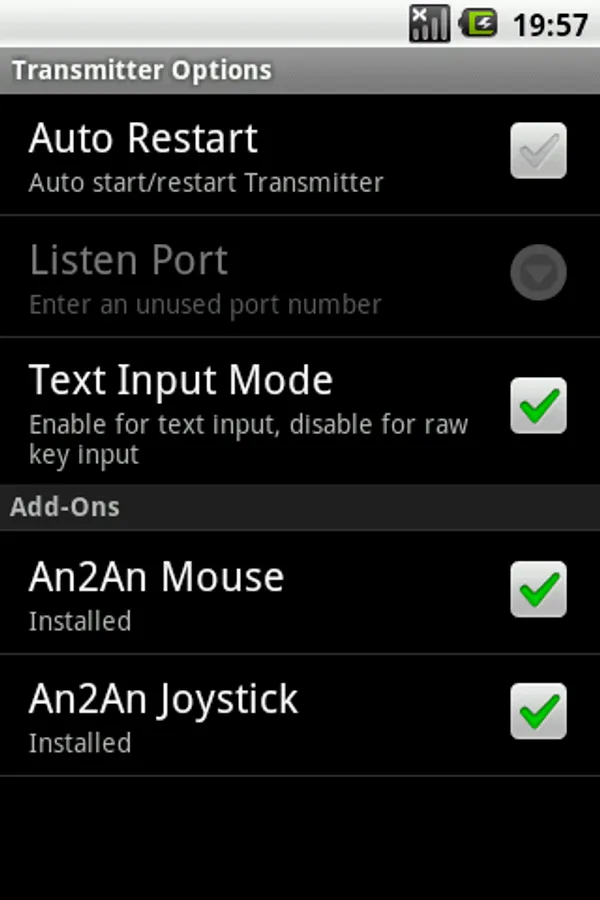
2. Install An2An Mouse to Transmitter device, restart transmitter app if running.
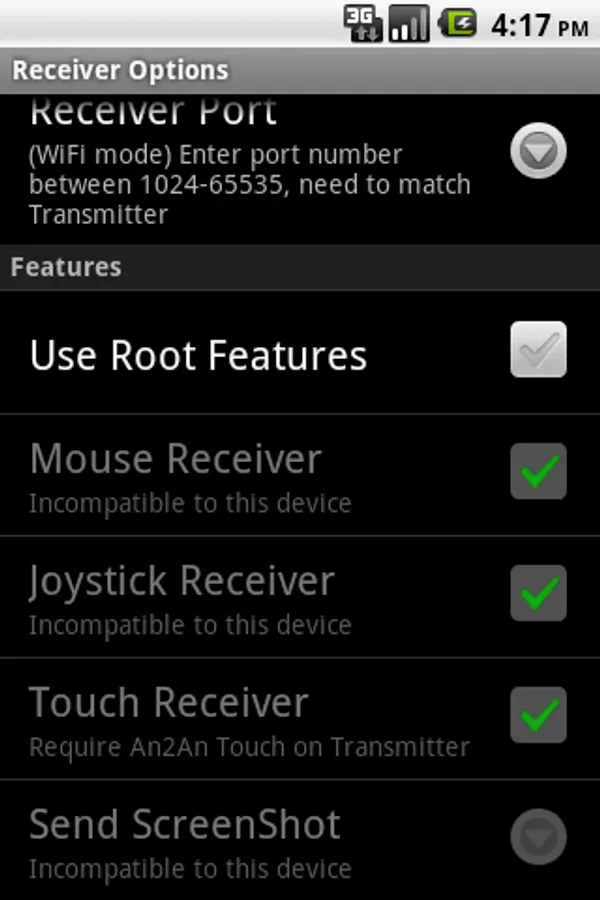
3. Enable "Use Root Features" on Receiver device, and grant root permission.
4. Connect An2An Remote normally and start using.
Using touchscreen as trackpad
- hold 1 finger then move => move cursor
- 1-finger tap => Left Click
- 2-fingers tap => Right Click
- hold 1 finger then tap with another finger => hold Left Button down
- drag right edge => roll mouse wheel
Recommend to check compatibility with An2An Remote (Demo) before purchase.
Please contact us for any problem (android.locnet@gmail.com).
Benefits
- Turn your wired mouse into an wireless mouse.
- When the target device cannot connect to mouse directly (e.g. no OTG), you can use another compatible device as a "bridge".
Requirements
- An2An Remote (Demo) 3.0.0+ (https://play.google.com/store/apps/details?id=com.locnet.an2an.demo)
- Rooted Receiver device with OS which supports mouse (typically OS 3.1+ or some 2.3 devices)
Instructions
1. Install and setup An2An Remote
2. Install An2An Mouse to Transmitter device, restart transmitter app if running.
3. Enable "Use Root Features" on Receiver device, and grant root permission.
4. Connect An2An Remote normally and start using.
Using touchscreen as trackpad
- hold 1 finger then move => move cursor
- 1-finger tap => Left Click
- 2-fingers tap => Right Click
- hold 1 finger then tap with another finger => hold Left Button down
- drag right edge => roll mouse wheel
An2An Mouse Screenshots
Tap to Rate: